
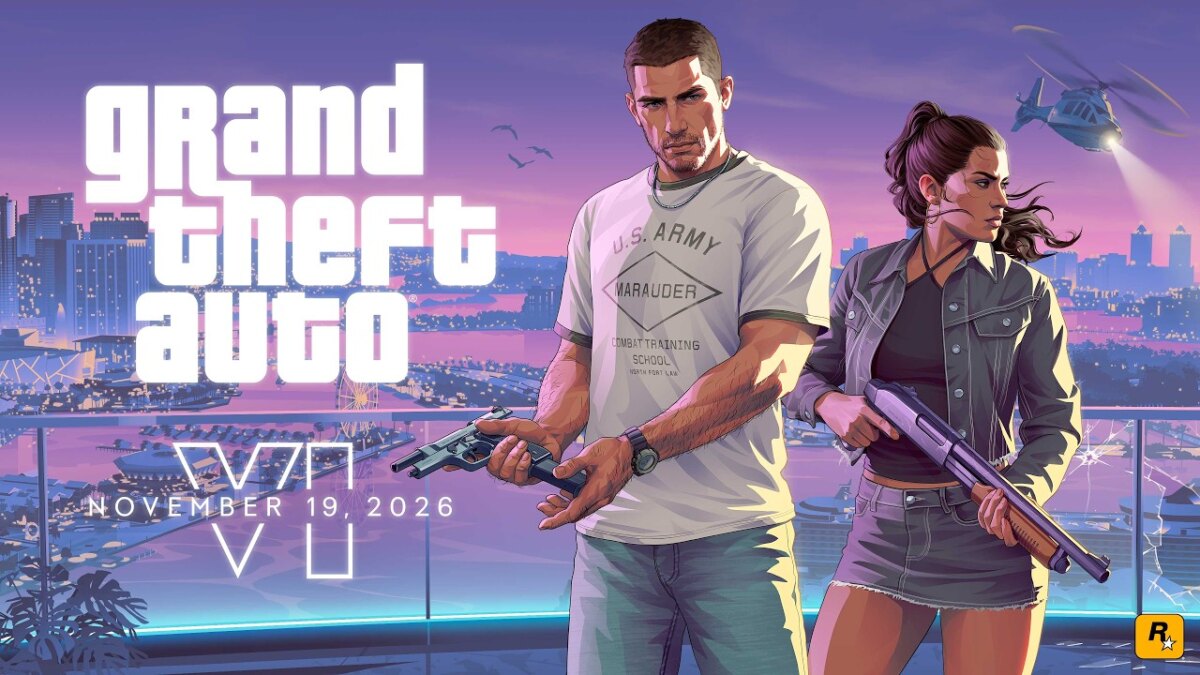
GTA 6 runs at 30 frames per second on PS5, PS5 Pro and Xbox Series X|S, and there is no 60 FPS mode to switch to. You can still make it look a lot smoother. Most TVs sold in the last few years have a motion smoothing feature that creates extra frames between the real ones, so 30 FPS starts to look close to 60. This guide shows you exactly where that setting lives on LG, Samsung, Sony, Hisense, TCL, Philips, Panasonic, Vizio and Roku TVs, which console settings to change first, and the input lag catch you should know about before you try it.
Quick answer: the four steps
- On your console, turn off VRR, 120Hz output and ALLM (auto low latency mode), so the TV stops forcing Game Mode.
- On the TV, leave Game Mode or Game Optimizer and pick a normal picture mode such as Standard. Samsung is the exception, see below.
- Turn on your brand’s motion smoothing setting (TruMotion, Motionflow, Motion Enhancement and so on) and set it to a custom or user level.
- Play a few minutes of driving. If you see glitches around the HUD or the controls feel slow, lower the smoothness one step.
Why GTA 6 runs at 30 FPS on consoles
Rockstar has said GTA 6 targets 30 FPS on every console, PS5 Pro included. There is no performance mode and no 40 FPS mode for 120Hz screens at launch. On PS5 Pro the extra power goes into image quality instead of frame rate: PSSR upscaling for a sharper picture and ray traced shadows. So if you want smoother motion right now, the console can’t give it to you. Your TV can. If you are still deciding on hardware, we looked at whether the PS5 Pro is worth buying at today’s prices.
What motion smoothing actually does
The technical name is motion interpolation. Your TV looks at two real frames, works out where everything on screen is moving, and draws a new frame in between. With a 30 FPS game, that means the panel shows 60 frames or more every second, half of them made by the TV. It works a lot like frame generation on PC, except it happens inside the TV after the console has already sent the picture.
Two things to keep in mind. First, the game itself still runs at 30 FPS. Your inputs are still read 30 times a second, so it looks smoother but does not respond faster. Second, this is the same feature that gives movies the “soap opera effect”, which is why filmmakers hate it. For a slower open world game like GTA, where you spend a lot of time driving and looking around, it can look great.
Before you start: what you need
- A TV with motion interpolation. It works best on a native 120Hz panel. Many cheaper 60Hz TVs have a weak version or none at all.
- Console settings changed first. On PS5 go to Settings, Screen and Video, Video Output and turn off VRR, Enable 120Hz Output and ALLM. On Xbox go to Settings, General, TV and display options, Video modes and untick variable refresh rate and auto low latency mode.
- The TV out of Game Mode. Almost every brand turns motion smoothing off in Game Mode, because Game Mode is built for the lowest possible lag. If your TV switches back to Game Mode by itself, look for an auto game setting in the HDMI or input menu (LG calls it Instant Game Response) and turn it off for that input.
What motion smoothing is called on every TV brand
| Brand | Setting name | Works in Game Mode? |
|---|---|---|
| LG | TruMotion | No |
| Samsung | Game Motion Plus (Auto Motion Plus outside games) | Yes |
| Sony | Motionflow | No (2023 and newer) |
| Hisense | Motion Enhancement | Use a normal mode |
| TCL | Motion Smoothing or Action Smoothing | Use a normal mode |
| Philips | Motion styles | No |
| Panasonic | Intelligent Frame Creation | No |
| Vizio | Reduce Judder and Reduce Motion Blur | Use a normal mode |
| Roku TV | Action Smoothing | Use a normal mode |
Menu names can change between models and software updates, so if a step below doesn’t match your screen exactly, look for the closest name in the picture settings.
How to turn it on, brand by brand
LG (TruMotion)
- Press Settings on the remote and open All Settings, then Picture.
- Change Picture Mode from Game Optimizer to Standard.
- On 2021 and newer models (webOS 6 and up) go to Picture, Advanced Settings, Clarity, TruMotion. On 2020 and older models it is under Picture, Advanced Mode Settings, Picture Option, TruMotion.
- Choose User Selection, then raise De-Judder and De-Blur. Leave OLED Motion or Motion Pro (black frame insertion) off, it makes the picture darker and adds flicker.
Samsung (Game Motion Plus)
Samsung is the one brand where you can keep Game Mode on. Game Motion Plus adds interpolation inside Game Mode and Samsung says it only works with game consoles.
- Set Game Mode to On or Auto.
- Press and hold the Play/Pause button on the remote to open the Game Bar.
- Open Game Mode settings and turn on Game Motion Plus.
- If the option is greyed out, turn off VRR (on the TV and on the console) and AI Gaming Optimizer. Samsung states that Game Motion Plus is disabled while VRR is on.
Outside Game Mode the same feature is called Auto Motion Plus, or Picture Clarity Settings on newer models: Settings, Picture, Expert Settings, then Custom, where you can raise Blur Reduction and Judder Reduction. The Game Bar works on M70H and higher models and U9000H, according to Samsung.
Sony BRAVIA (Motionflow)
- Press the Quick Settings button, then go to Settings, Display and Sound, Picture.
- Change the picture mode from Game to Standard. On 2023 and newer BRAVIA models Sony says Motionflow is disabled in Game mode.
- Open Motion, then Motionflow, and choose Custom.
- Raise Smoothness (0 to 3). Some models split it into Smoothness (Film) and Smoothness (Camera). Leave Clearness low.
Older Android TV models list Motionflow as Smooth, Standard, Clear, True Cinema, Custom or Off. Smooth is the closest to what you want here.
Hisense (Motion Enhancement)
- On Hisense Google TV models go to Settings, Display and Sound, Picture.
- Pick Standard as the picture mode instead of Game.
- Open Advanced Settings, then Motion Enhancement, and choose Custom.
- Raise Judder Reduction and Blur Reduction. Older VIDAA models may call it Ultra Smooth Motion or Motion Smoothing.
TCL (Motion Smoothing)
- Press the Settings (gear) button and select Picture.
- Turn off Game Mode or Low Latency Mode for that HDMI input.
- Open Advanced settings, then Motion.
- Turn on Motion Smoothing or Action Smoothing and raise Judder Reduction. TCL notes the names change by model, some list it as Motion Clarity.
Philips (Motion styles)
- Go to Settings, Display and Sound, Picture.
- Change Picture style away from Game or Monitor. Philips disables Motion styles in those two.
- Open Motion, then Motion styles, and choose Smooth, or Personal if you want to set it yourself.
- With Personal, raise Smoothness (0 to 10). Older Philips sets call this Perfect Natural Motion.
Panasonic (Intelligent Frame Creation)
- Open the Menu and go to Picture.
- Turn Game Mode off. Panasonic says Intelligent Frame Creation doesn’t work while Game Mode is on.
- In the advanced or motion settings, set Intelligent Frame Creation to Min, Mid or Max. Start with Mid.
Vizio (Reduce Judder)
- Press Menu and open Picture, then switch off Game Low Latency.
- Open More Picture (or Advanced Picture on newer models).
- Raise Reduce Judder and Reduce Motion Blur. Some models group these under Motion Control.
Budget 60Hz Vizio models such as many V Series sets only offer Film Mode and have no real frame interpolation, so this trick won’t work on them.
Roku TV (Action Smoothing)
- Press the Star button on the Roku remote while the console is on screen.
- Go to Picture settings, Customize Picture, Expert settings.
- Turn on Action Smoothing. Roku says it depends on the model, and partner brands may name it differently.
Best settings to start with
- Judder or smoothness: start in the middle. Go to max only if the image stays clean.
- Blur reduction: medium is usually enough.
- Black frame insertion (OLED Motion, LED Clear Motion, Clearness): off.
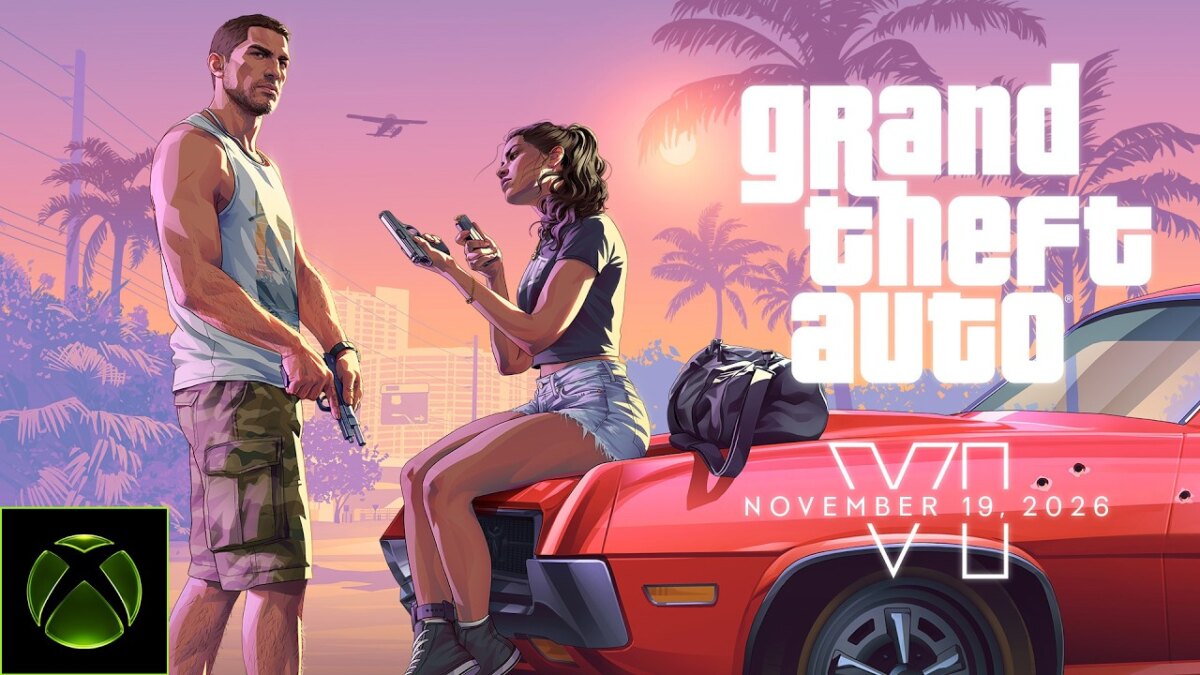
- Test spot: drive fast past palm trees and fences in Vice City. If you see shimmering edges or a halo around the minimap and HUD, lower the smoothness one step.
Interpolation works best when the game holds a steady 30 FPS. When the frame rate dips, the TV has a harder time guessing the missing frames and you will see more artifacts.

The catch: input lag and HDR
Creating extra frames takes time, so every brand adds input lag when motion smoothing is on. That is the delay between pressing a button and seeing it happen. Samsung says it plainly in its own manual: input lag is lower with Game Motion Plus off, and VRR can’t run at the same time. In fast shooters where every shot has to be precise, this feels bad. In GTA, with auto aim and a slower pace, a lot of players won’t notice it.
Leaving Game Mode can also cost you some HDR features that only work there, for example HGiG tone mapping on LG and other sets. Highlights may look a little different in Standard mode. Try both and keep whichever you like more.
| Turn it on for | Turn it off for |
|---|---|
| Story missions | GTA Online |
| Driving around Vice City | Competitive or ranked games |
| Exploring and photo mode | Fast shooters and fighting games |
Setting greyed out? Quick fixes
- The TV keeps jumping back to Game Mode: turn off ALLM on the console and the auto game option on the TV.
- Samsung Game Motion Plus is dimmed: VRR or AI Gaming Optimizer is on. Turn both off.
- Nothing changes on screen: the console is sending 120Hz. Turn off 120Hz output on PS5 or set Xbox to 60Hz.
- No motion setting at all: your TV may be a 60Hz model without interpolation. Check the brand table above and your model’s manual.
GTA 6 at 60 FPS: frequently asked questions
Does GTA 6 have a 60 FPS mode on PS5 Pro?
No. Rockstar targets 30 FPS on PS5, PS5 Pro and Xbox Series X|S. The PS5 Pro gets PSSR upscaling and ray traced shadows instead of a higher frame rate.
Does motion smoothing make GTA 6 run at 60 FPS?
It makes it look like 60 FPS or more, but the game still runs at 30. The extra frames are created by the TV, so the controls don’t get faster.
Will it add input lag?
Yes, on every TV. How much depends on the model. It is fine for most story play, but turn it off for GTA Online and anything competitive.
Does it work on a 60Hz TV?
Sometimes, but results are much better on a native 120Hz panel. Many budget 60Hz TVs don’t have real interpolation at all.
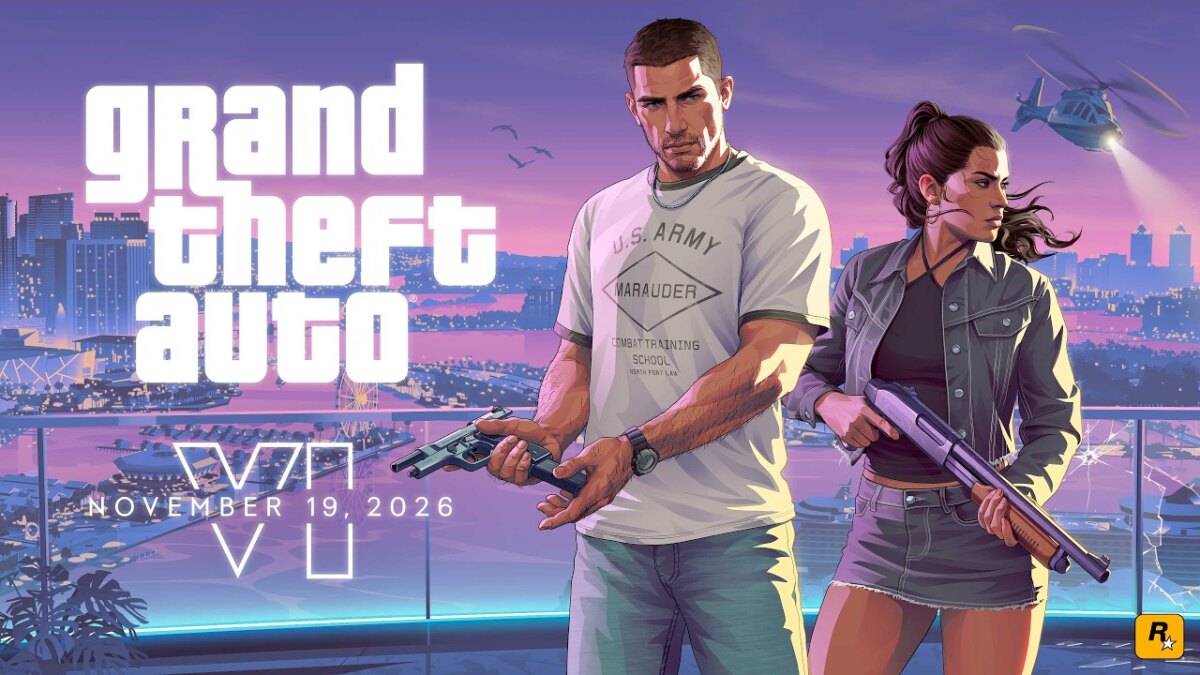
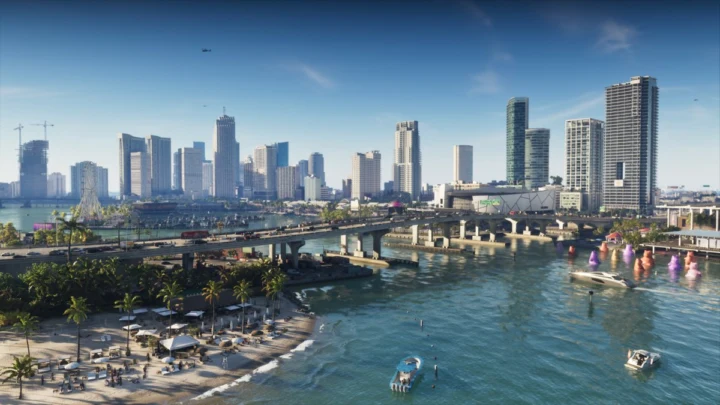
Watch the official GTA 6 trailers below to see the game in motion.
Getting ready for launch night? Check the GTA 6 unlock time for your region and how much space you need from the GTA 6 preload details. Playing on Xbox without a console? Here is how GTA 6 runs on Xbox Cloud.
GTA 6 release date, platforms and frame rate
- Release date: November 19, 2026, midnight local time
- Platforms: PS5, PS5 Pro, Xbox Series X|S (no PC version announced)
- Frame rate: 30 FPS target on all consoles
- PS5 Pro extras: PSSR upscaling and ray traced shadows
- Official page: Grand Theft Auto VI on rockstargames.com
This guide is based on Rockstar’s statements on GTA 6 performance and on the official support pages and manuals from LG, Samsung, Sony, Hisense, TCL, Philips, Panasonic, Vizio and Roku.
Follow GamingBroject on Google: add us as a preferred source

Community
0 comments