
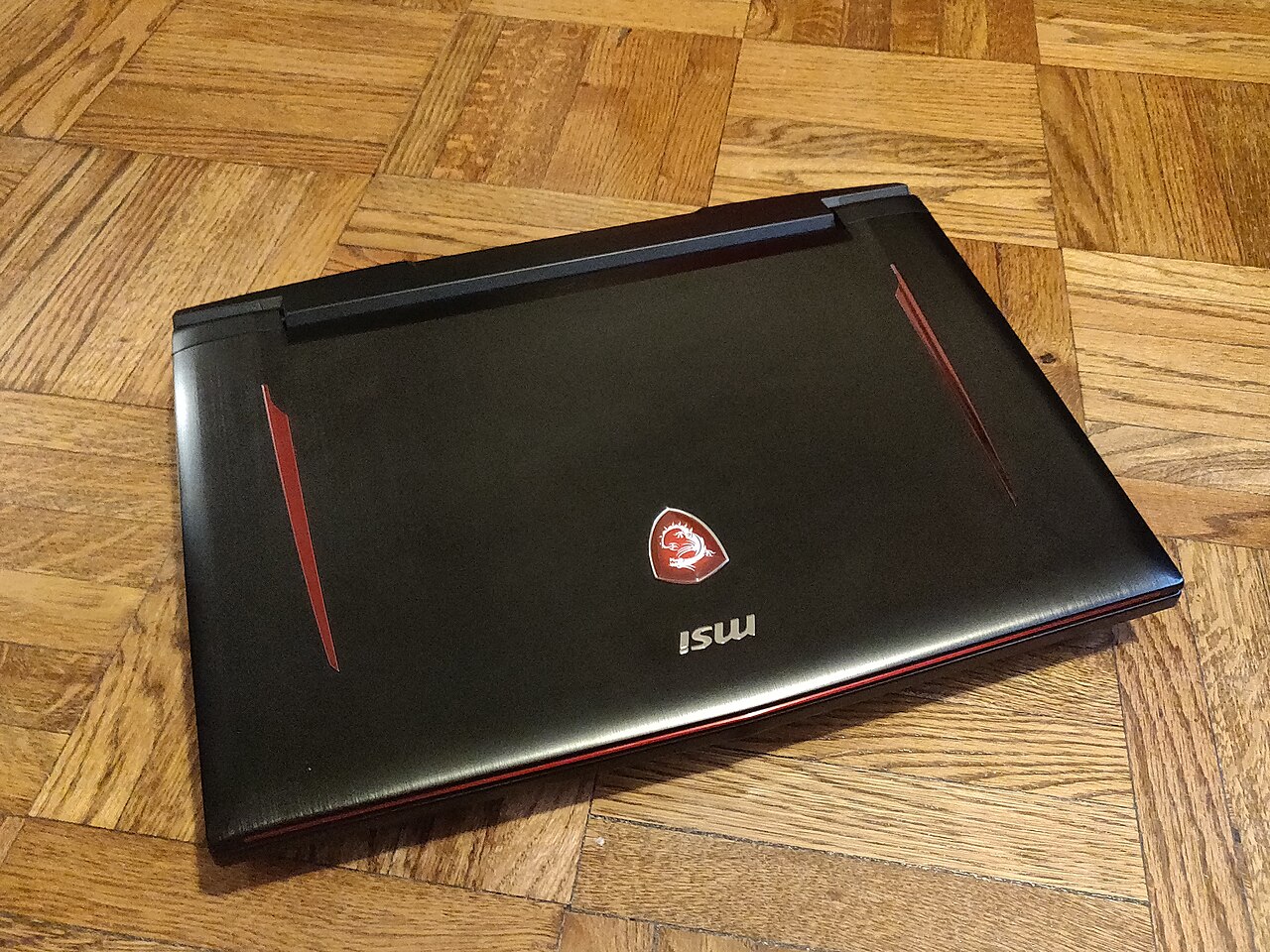
A gaming laptop overheating fix usually starts before you buy a cooling pad or consider opening the chassis. If a game suddenly stutters after twenty minutes, the fans are constantly loud, or performance drops in a busy match, your laptop may be reducing CPU or GPU speed to control heat. That is frustrating, but it is also a protective response. The smart move is to find the bottleneck first, then make the least risky change that addresses it.
Watch the video guide

Start with the simple gaming laptop overheating fix
Put the laptop on a hard, flat surface and check that its intake and exhaust vents have open space around them. A bed, couch, blanket, or even a thick desk mat can block the underside intake on many gaming designs. Raising the rear slightly with a stable stand can improve the room available for air to enter, provided the stand does not cover vents.
Then check the room itself. Gaming laptops move heat into the air around them, so a warm, closed room gives the cooling system less useful air to work with. This does not mean every warm laptop is broken. A thin system running a demanding game will get hot. What matters is whether the heat causes obvious performance loss, crashing, an unexpected shutdown, or uncomfortable temperatures on the keyboard and palm rest.
Listen to the fan behavior while a game is running. Fans spinning quickly under load are normal. Fans that barely react while the chassis gets very hot can point to a quiet mode, a custom profile, or a software problem. Fans that make grinding, clicking, or inconsistent noises may need professional service rather than a settings tweak.
Confirm whether heat is actually causing the slowdown
Do not assume every frame rate drop is thermal throttling. A new game update, a full storage drive, background downloads, memory pressure, battery saver settings, or a power adapter issue can all make a game run poorly. Heat becomes the likely cause when performance is strong at first and declines after the laptop has been under sustained load.
Use the performance monitoring tools included with your game, graphics driver, operating system, or laptop maker’s control app. Watch CPU use, GPU use, clock speeds, temperatures, fan speed if available, and frame rate over the same play session. You are looking for a pattern, not one isolated number.
For example, if frame rate falls at the same time GPU clocks fall and the fan is already working hard, heat may be limiting graphics performance. If the GPU is lightly used while the CPU is maxed out, lower CPU-heavy options such as view distance, crowd density, simulation quality, or background applications before blaming the cooling system. Different games load hardware differently. A competitive shooter chasing a very high frame rate can stress the CPU more than a visually demanding single-player game at a capped frame rate.
Set a sensible power and fan profile
Most gaming laptops include a manufacturer control app with power modes and fan settings. The names vary, but the underlying choice is familiar: quieter operation usually allows less fan noise and may reduce available power, while a performance mode can raise fan speed and heat output to sustain higher clocks.
For long sessions, try the balanced or performance profile recommended by the laptop maker before selecting the most aggressive mode. The maximum setting is not always the best answer. It can create a lot more noise for a small gain, and it may push more heat into an already warm room.
If your laptop offers manual fan control, increase fans gradually under sustained gaming loads. Avoid setting every point to maximum just because the option exists. Constant maximum fan speed is loud, can pull in more dust, and may not fix a restricted vent or failing fan. Save the original profile first so you can restore it if the change makes noise or temperatures worse.
Windows power settings matter too. Game while connected to the correct power adapter that came with the laptop or is approved by its manufacturer. Many gaming laptops reduce performance on battery power, and an underpowered adapter can create confusing results. If charging cuts in and out during gaming, stop troubleshooting game settings and inspect the cable, connector, and adapter condition.
Reduce heat where it matters in the game
The best fix can be asking the laptop to render fewer frames. An uncapped frame rate makes sense for some competitive games, but it can keep the CPU and GPU working flat out even when your display cannot show every extra frame. Set a frame cap that matches how you actually play. This often reduces fan noise and heat with a smaller visual sacrifice than cutting quality settings at random.
Start with the settings that create sustained load. Resolution, ray tracing, shadows, reflections, view distance, and resolution scaling can all affect GPU demand. In CPU-limited games, crowd settings, simulation settings, and frame rate targets may matter more. Change one or two settings, play the same area for several minutes, and compare the result.
Upscaling can help when the GPU is the limit, but it is not a universal heat fix. If the CPU is already holding back frame rate, a lower rendering load may simply leave the GPU with more idle time while the game still stutters. Frame generation also has tradeoffs. It can improve the displayed frame rate in supported games, yet it does not replace a stable base frame rate or solve a cooling problem by itself.
Close background tasks that are doing real work. Browser video, file syncing, game downloads, recording software, and multiple overlays can add CPU, memory, storage, or network activity. Do not close security software blindly. Focus on the applications you recognize and do not need during the session.
Clean the vents before buying accessories
Dust is one of the most common reasons an older laptop runs louder or hotter than it did when new. Shut the laptop down fully, disconnect power, and let it cool. Use a soft brush or a can of compressed air according to the laptop maker’s cleaning guidance. Work gently around vents and avoid forcing debris deeper into the chassis.
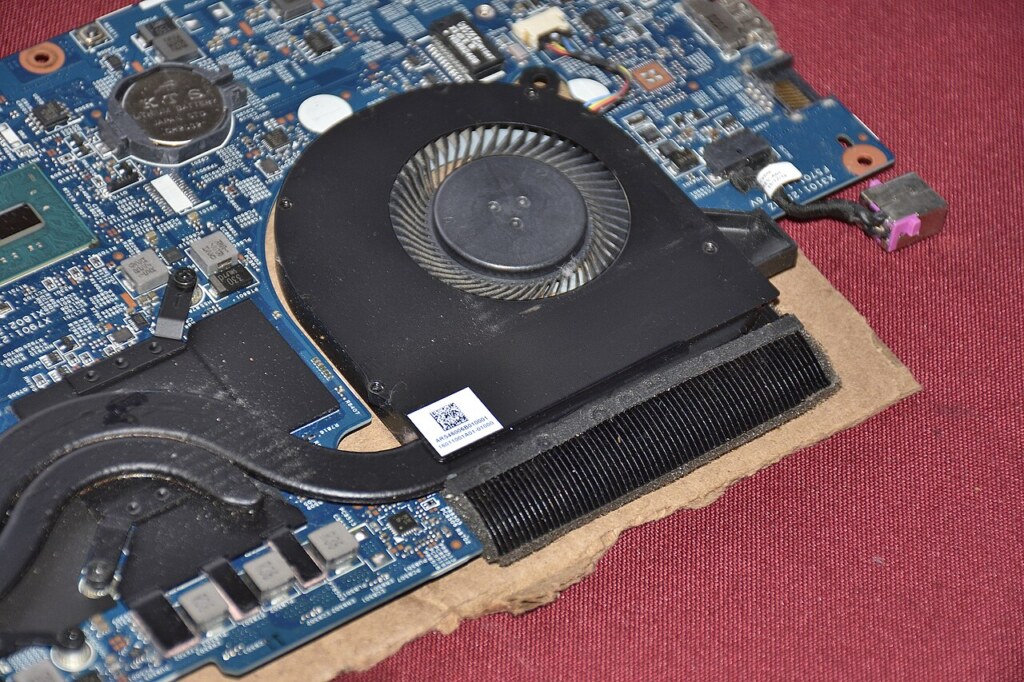
Opening the bottom panel is more complicated. Some models are designed for user upgrades, while others use clips, hidden screws, or cable layouts that are easy to damage. Warranty terms and service instructions vary by manufacturer and region. If you cannot find clear official instructions for your exact model, a reputable repair shop or the manufacturer’s service channel is the safer option.
Thermal paste is another area where internet advice gets too confident. Replacing it can help in some cases, especially after years of use, but it requires disassembly and correct application. It is not the first step for a laptop that has blocked vents, a bad power profile, or an unrealistic uncapped frame rate. Do not treat it as routine maintenance unless you understand the service process for your exact machine.
When a cooling pad helps and when it does not
A cooling pad can improve comfort and airflow for laptops with underside intake vents, particularly on a desk where the rear of the system sits low. Its value depends on the chassis design. If the laptop draws most air from the bottom, a pad or stand may help more than it would on a system with side or rear intake.
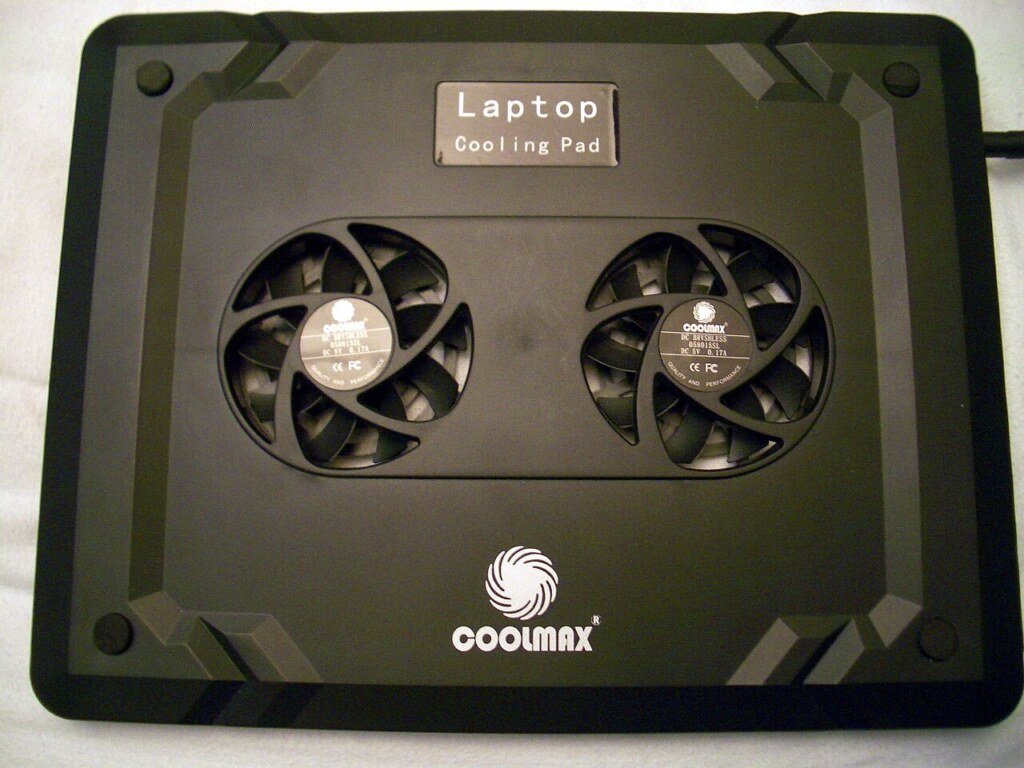
Do not expect an accessory to overcome a clogged heatsink, a damaged fan, or a demanding game running with every setting maximized. Think of a cooling pad as a supporting tool, not a repair. A simple ventilated stand may be enough if the real issue is poor clearance below the laptop.
Know when to stop troubleshooting at home
Get professional help if the laptop shuts down repeatedly under normal gaming load, has a burning smell, shows battery swelling, reports a fan error, or produces new mechanical fan noises. Battery swelling is especially urgent. Stop using the laptop, do not press on the chassis, and contact the manufacturer or a qualified repair provider.
Also seek service if temperatures and performance changed sharply without any change in the game, room, settings, or laptop placement. A failed fan, dried thermal interface material, loose heatsink, or packed internal dust can require work that software settings cannot address.
A cooler gaming laptop is not necessarily a quieter or faster one in every game. The practical goal is stable performance, safe operation, and a noise level you can live with. Start with airflow, a sensible frame cap, and the right power profile, then move to cleaning or service only when the evidence points there.
Follow GamingBroject on Google: add us as a preferred source


Community
0 comments