
A Nintendo Switch
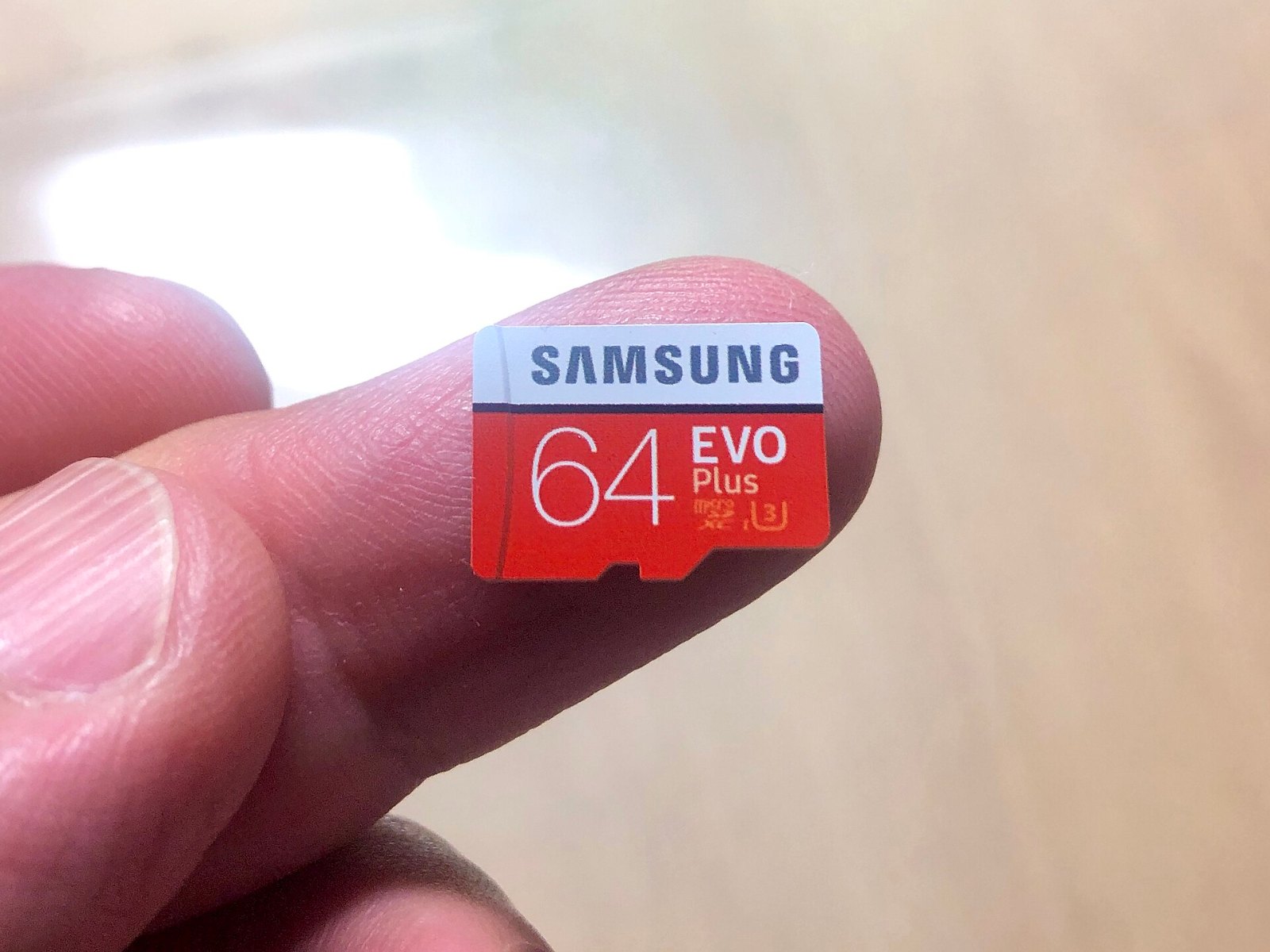
Nintendo’s own support page spells this out: Nintendo Switch 2 supports microSD Express cards up to 2 TB, a standard microSD card only lets Switch 2 load screenshots and videos, and the first time you insert a microSD Express card the console needs a system update over the internet. Licensed microSD Express cards for Switch 2 are sold on the official Nintendo Store.
can run out of room faster than most players expect. A few large downloads, screenshots, video captures, and update data can leave the system asking you to archive something just when you want to install a new game. The good news is that learning how to expand Switch storage is straightforward, provided you buy the card that matches your particular Nintendo Switch model.The key distinction is simple. Nintendo Switch, Nintendo Switch OLED Model, and Nintendo Switch Lite use standard microSD cards. Nintendo Switch 2 uses microSD Express cards. Those formats look similar, but they are not interchangeable in the way many buyers assume. A standard microSD card can be used to transfer screenshots and videos to Switch 2, but it cannot store or play Switch 2 games.
Know Which Nintendo Switch You Own
Before shopping, check the model in System Settings, then System, then System Update or System Information. The original Nintendo Switch, Nintendo Switch OLED Model, and Nintendo Switch Lite support microSD, microSDHC, and microSDXC cards. Nintendo Switch 2 requires microSD Express storage for game data.
That requirement matters because older microSD cards are widely available and often less expensive. They remain a sensible purchase for the earlier Switch family, but they are the wrong choice if your goal is extra game storage on Switch 2. Do not rely on the card’s physical size or a store listing that only says microSD. Look specifically for the microSD Express name on the packaging when buying for Switch 2.
Internal storage also varies by system. Nintendo Switch and Switch Lite include 32 GB of internal storage. Nintendo Switch OLED Model includes 64 GB. Nintendo Switch 2 includes 256 GB. The usable space will be lower because the system software occupies part of the built in storage.
Choose Capacity Based on Your Library
For the earlier Nintendo Switch systems, Nintendo supports microSDXC cards up to 2 TB. A 128 GB or 256 GB card is enough for many players who mostly buy smaller eShop games or use physical cartridges. Players who keep large digital games installed, save many captures, or share one console with a family will likely appreciate 512 GB or 1 TB.
Capacity is not the only consideration. Buy from a recognizable retailer and manufacturer, because fake microSD cards can report more capacity than they actually have. That can lead to failed downloads or corrupted data after the card fills up. A suspiciously cheap high capacity card is not much of a bargain if the console cannot reliably read what you installed.
For Switch 2, choose a microSD Express card with enough capacity for the games you intend to keep installed. Since Switch 2 games are designed around the faster card standard, a standard microSDXC card is not a substitute. If you own both a first generation Switch and Switch 2, you may need separate cards for each system’s game library.
How to Expand Switch Storage Safely
Power the Nintendo Switch system completely off before inserting or removing a card. Sleep Mode is not the same as powering it off. Hold the Power Button, select Power Options, then choose Turn Off.
On Nintendo Switch, Nintendo Switch OLED Model, and Nintendo Switch Lite, open the microSD card slot cover. Its location differs slightly by model, so use the system’s official safety information if you are unsure. Insert the card with the label facing the correct direction until it clicks into place. Do not force it.
On Nintendo Switch 2, use the microSD Express card slot under the adjustable stand. Insert the card in the indicated orientation, close the stand, and power the console back on. The system may ask to format a new card before it can be used. Formatting prepares the card for that console, but it erases any data already on it.
If the card contains files you need, copy them to another device before formatting. This is especially relevant when reusing a card that previously held photos, captures, or files from another device.
Move Games Instead of Downloading Everything Again
Adding a card does not always mean every installed game moves over automatically. On Nintendo Switch, Nintendo Switch OLED Model, and Nintendo Switch Lite, open System Settings, select Data Management, then choose Move Data Between System and microSD Card. From there, choose Move to microSD Card and select the software you want to relocate.
This is useful when internal storage is full but you want to preserve the installed game rather than archive it. Software stored on a microSD card will still appear on the HOME Menu when the card is inserted. The game will not launch if the card is removed.
Nintendo Switch 2 also includes data management tools in System Settings. The most practical approach is to set your microSD Express card as the destination for future downloads once it is installed, then move software as needed when built in storage becomes crowded. Menu wording can change through system updates, but Data Management is where Nintendo groups storage controls.
Save data is different. Game save data is stored in the console’s built in system memory, not on a microSD card. Expanding storage helps with downloadable software, updates, downloadable content, screenshots, and videos. It does not create a manual backup of your saves.
Nintendo Switch Online cloud backup support depends on the game and the membership service. Some games do not support Save Data Cloud backup. Treat cloud saves as a separate feature from microSD storage, and check the game details before assuming your progress is protected.
What Physical Game Owners Still Need to Know
Buying physical games can reduce how much base game data you download, but it does not eliminate storage pressure. Updates, downloadable content, save data, and some required downloads can still use internal storage or the microSD card. A physical cartridge also needs to remain inserted when you play that version of the game.
This is why a card remains worthwhile even for players with a shelf full of cartridges. The best capacity depends less on whether you buy physical or digital games and more on how many games you want ready to launch without managing storage every week.
Fix Common Storage Problems
If the console does not recognize a new card, turn the system off, remove the card, and reseat it carefully. If that does not help, confirm that the card format matches the console. A standard microSDXC card is valid for earlier Switch models, while Switch 2 game storage needs microSD Express.
If you see insufficient space despite installing a card, open Data Management and look at both System Memory and microSD Card usage. Screenshots and video captures can consume more room than expected. Copying captures to a computer and deleting unwanted clips can make a meaningful difference, especially on a 32 GB console.
Archiving is another option when you want to keep an icon on the HOME Menu but remove the downloadable software. Your save data stays on the system. You can download the game again later, though that depends on having internet access and enough storage when you return to it.
A larger card is convenience, not a requirement to keep every game forever. Pick one that fits the games you actually rotate through, protect your saves separately, and leave enough free space that the next big update does not turn game night into storage cleanup.
Based on Nintendo’s support page on microSD card and microSD Express card compatibility with Nintendo Switch 2 and Nintendo Switch. Photo: KKPCW, Wikimedia Commons, CC BY-SA 4.0.
Follow GamingBroject on Google: add us as a preferred source

Community
0 comments