
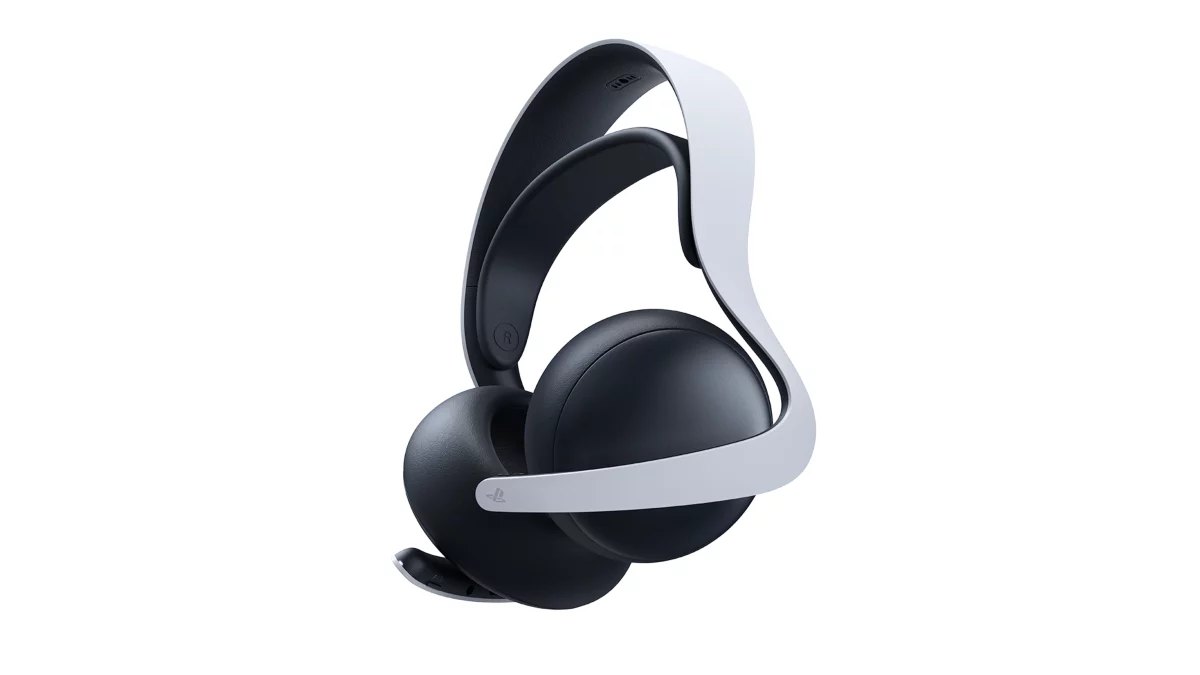
A gaming headset microphone not working is rarely a mystery once you isolate the platform, connection, and chat settings. The frustrating part is that a headset can deliver perfect game audio while its mic sends nothing at all. Start with the fastest checks first, then move toward system settings and hardware faults only if the simple fixes fail.
This guide covers wired and wireless headsets on PC, PlayStation, Xbox, Nintendo Switch, and phones used for party chat. Menu names can differ by system version and headset brand, but the order of troubleshooting stays useful.
Start with the headset itself
Check the microphone mute control before changing any console or PC settings. Many gaming headsets use a button, wheel, switch, or flip up boom to mute the mic. A physical mute switch can be easy to miss, especially after moving the headset between a controller and a computer.
If your headset has a detachable boom microphone, remove it and connect it again firmly. A boom that looks connected but is not fully seated can cause silence, crackling, or very low volume. Check the connector for dust, bent contacts, or damage, but do not force it into place.
For a wired model, unplug the cable from the controller, console, PC, or USB adapter and reconnect it. Try another compatible port if one is available. A port can still deliver audio while failing to pass microphone input correctly, particularly when an adapter or extension cable is involved.
Wireless headset owners should charge the headset and confirm it is connected to its intended receiver or console profile. Low battery does not always shut off audio first. Some models can keep playing game sound while their microphone connection becomes unreliable.
Check whether the gaming headset microphone works anywhere
The quickest way to narrow down the problem is to test the mic in a second place. On a PC, use the operating system’s sound input meter or a voice recorder. On a console, use its microphone test or party chat indicator if available. On a phone, a basic voice recording can help with a headset that uses a compatible analog connection.
If the input meter moves, the microphone is working. The problem is likely limited to a game, voice app, party setting, or account permission. If the meter stays still across multiple devices, look harder at the headset, its cable, its boom, and any included adapter.
Do not skip this split. Reinstalling a game or changing every chat setting will not repair a loose cable, and buying a replacement headset will not fix a single disabled input device on your PC.
Fix microphone input on PC
Windows can route sound to one device and microphone input to another. That is useful for streamers and multi device setups, but it is a common reason a gaming headset microphone is not working after a restart, update, or USB device change.
Open your sound settings and select the headset microphone as the active input device. Speak at a normal volume and watch the input meter. If a webcam, controller, monitor, capture device, or old headset is selected instead, switch to the correct mic before opening your game.
Then check the voice settings inside the game or chat app. Many games let you choose an input separately from Windows. Set the headset mic there, raise the input volume if needed, and confirm that push to talk is not enabled by accident. If it is enabled, confirm the selected key is not conflicting with another control.
Microphone privacy permissions can also block desktop apps. Check that microphone access is enabled for the system and for the specific app you are using. If a game has both in game voice chat and a separate launcher or social app, verify permissions for each one.
USB headset software can add another layer. If your headset uses an app for equalizer profiles, surround sound, or microphone effects, temporarily disable optional processing such as noise reduction, gate controls, or voice enhancement. Those features can improve a noisy room, but aggressive settings may cut off a quiet voice or make speech sound broken.
Restart the PC after changing input devices if the game refuses to recognize the new selection. Some games only scan audio hardware when they launch.
Fix headset mic issues on PlayStation and Xbox
On PlayStation and Xbox, begin with the controller connection if you use a 3.5 mm headset. Remove the plug, inspect it, and reconnect it until it is fully seated. A plug that is slightly out of place can produce game audio without a usable microphone.
Next, open the console’s audio or party settings and confirm that the controller headset microphone is selected where applicable. Check the microphone level indicator while speaking. If it reacts, your hardware is likely fine and the next stop is the game’s voice chat menu.
Party and game chat can also compete with each other. Leave the current party, rejoin it, then test game chat in a title that supports it. If party chat works but game chat does not, check the game’s voice channel, mute list, and push to talk option. Some games separate team chat, group chat, proximity chat, and party chat, so joining the wrong channel can look exactly like a failed microphone.
Account privacy and communication settings deserve a check too, particularly on a child or family account. A console can block voice communication because of account restrictions even when the headset and controller both work normally.
Wireless models should be paired directly to the supported console connection method. Do not assume a headset that connects to a phone through Bluetooth can use that same path for console chat. Console support varies by headset and platform, and a USB receiver or controller connection may be required.
Nintendo Switch 2 and mobile chat checks
On Nintendo Switch 2, GameChat is built into the system and works with the console’s own microphone, a wired headset in the audio jack on the console or Switch 2 Pro Controller, or a USB headset, but Bluetooth headset microphones are not supported. If friends cannot hear you, open System Settings, go to Audio Input, pick the right Input Microphone and run Test Microphone; GameChat also needs a Nintendo Switch Online membership, and players under 16 need a parent to set it up. On the original Nintendo Switch, voice chat still depends on the game.
For a phone or tablet, confirm the headset has microphone permission in the chat app. Disconnect other Bluetooth audio devices as well. A phone can silently switch its input to built in microphones, a car system, or another connected accessory.
Analog headsets with a single 3.5 mm plug may need a compatible combo jack. A PC with separate headphone and microphone ports needs the correct splitter. Using the wrong adapter is one of the most common reasons players get audio but no voice input.
When the game is the actual problem
If the microphone works in party chat, a system test, or another game, focus on the affected game’s settings. Check whether voice chat is enabled, whether you are muted in the lobby, and whether the game has an input device selector. Resetting only the game’s audio settings can be more useful than resetting your whole console or PC configuration.
Connection quality matters as well. Voice chat can fail during a network outage, a weak wireless connection, or a service issue that affects only one game’s servers. If teammates cannot hear anyone, not just you, pause hardware troubleshooting and see whether the game’s official support channels report a known issue.
Cross platform games add one more complication. A friend on another platform may have communication restrictions, a different channel selected, or a platform level privacy setting that prevents voice chat. Test with another player before assuming your headset is at fault.
Know when hardware is probably damaged
A headset is more likely to have a hardware fault when its microphone fails on multiple compatible devices after you have checked the mute control, boom connection, cable, and adapter. Intermittent crackling when the cable moves also points toward cable wear or a damaged plug.
Before replacing anything, test a different headset on the same controller, PC port, or console. If the second headset works immediately, your original headset or its adapter is the likely cause. If neither works, the source device settings or port deserve another look.
The best fix is usually the least dramatic one: select the right input, unmute the boom, reseat the cable, and test outside the game. Once you know whether the fault follows the headset or stays with one platform, you can stop guessing and get back to the match.
Based on official support guides from Microsoft, PlayStation, Xbox and Nintendo.
Follow GamingBroject on Google: add us as a preferred source



Community
0 comments