
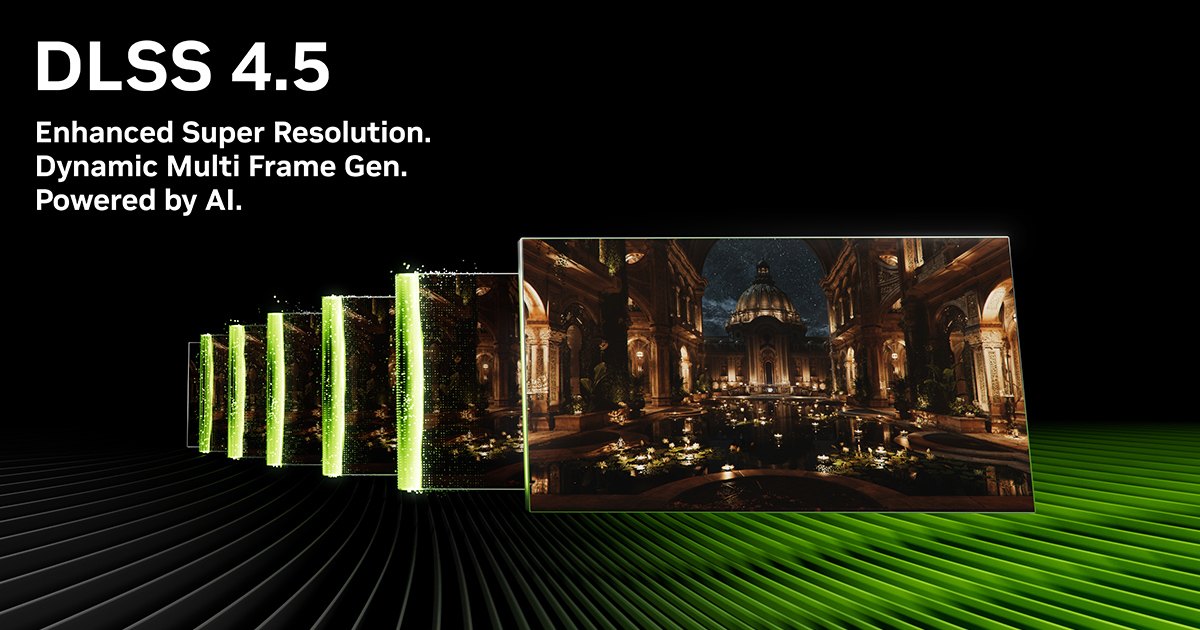
A demanding game can look sharp at 4K while your GPU is actually rendering far fewer pixels. If you are asking, “what does DLSS do,” that is the core idea: NVIDIA DLSS uses AI based processing to improve performance while aiming to keep image quality close to a higher native resolution.
For PC players, DLSS can be the difference between turning on ray tracing and leaving it off, or between a playable frame rate and a stuttering one. It is not magic, though. The best setting depends on your GeForce RTX graphics card, display resolution, the game’s implementation, and whether you care more about responsiveness or a higher frame counter.
What does DLSS do in a game?
DLSS stands for Deep Learning Super Sampling. Its best known feature, DLSS Super Resolution, renders a game at a lower internal resolution, then uses information from multiple frames, motion data, and an AI model to create an image at your selected display resolution.
Put simply, a game running on a 4K monitor might render internally below 4K. DLSS reconstructs that lower resolution image for the screen. Because the GPU has fewer pixels to render in the first place, performance can improve substantially, especially when the game is limited by graphics workload.
That matters most in visually expensive games. Ray traced lighting, dense city scenes, reflections, shadows, and high resolution displays all put heavy pressure on a graphics card. DLSS gives players another way to balance image quality and performance instead of relying only on lower graphics presets.
DLSS is only available in games that support it, and it requires an NVIDIA RTX GPU. It is a game feature, not a universal switch in the NVIDIA app that works in every PC game.
DLSS Super Resolution is the feature most players mean
When a game presents DLSS Quality, Balanced, Performance, and Ultra Performance modes, it is usually referring to Super Resolution. These modes change the internal render resolution.
Quality mode starts with the most image data and is often the sensible first choice for a 1440p or 4K display. Balanced mode reduces the internal resolution further for a larger performance gain. Performance mode pushes that tradeoff harder, while Ultra Performance is intended for situations where extremely high output resolutions make a much lower internal resolution practical.
There is no single best mode for every game. At 4K, Quality or Balanced can look convincing in motion because DLSS has enough pixels and frame data to work with. At 1080p, aggressive modes have less source detail, so small text, foliage, distant geometry, and fine patterns may look softer or less stable than native rendering.
The real question is not whether DLSS is “on” or “off.” It is whether the performance gained is worth the image compromise on your monitor. A player chasing 120 frames per second on a high refresh rate display may make a different choice than someone playing a cinematic single player game at 60 frames per second.
Frame Generation creates extra frames
DLSS is now a broader group of technologies. On GeForce RTX 40 Series and GeForce RTX 50 Series GPUs, supported games can use DLSS Frame Generation. This feature creates an additional generated frame between traditionally rendered frames.
The practical result is a higher displayed frame rate. If a game is rendering 60 frames per second before Frame Generation, the display can show more frames than the GPU rendered through the usual game pipeline. That can make camera motion look smoother, particularly on high refresh rate screens.
Frame Generation does not make the game simulation run faster in the same way as improving the base frame rate. Your CPU still processes gameplay, input, physics, and game logic at the original rendered rate. It also cannot remove the input delay caused by a low base frame rate.
That is why NVIDIA Reflex matters alongside Frame Generation. Reflex is designed to reduce system latency in supported games. It does not erase every delay, but it helps make Frame Generation more sensible when a game already has a solid underlying frame rate.
For fast competitive games, many players should prioritize a high native or Super Resolution frame rate and low latency before adding generated frames. For slower paced games, Frame Generation can be a more attractive way to improve motion on a large display.
Multi Frame Generation and DLSS 5
NVIDIA’s current DLSS suite, led by DLSS 5 with 3D Guided Neural Rendering, also includes Multi Frame Generation and Dynamic Multi Frame Generation, which can create up to five extra frames for every rendered frame (6X mode) on GeForce RTX 50 Series graphics cards in supported games. Rather than creating one generated frame between rendered frames, Multi Frame Generation can create multiple generated frames.
The potential frame rate increase is significant, but the same caution applies with greater force. A very high displayed frame rate is not the same as a matching increase in input responsiveness or game simulation speed. The game still needs a healthy base performance level to feel good.
This distinction matters when comparing screenshots, benchmark charts, or marketing numbers. Ask what resolution was used, which DLSS mode was selected, whether Frame Generation or Multi Frame Generation was active, and what the base frame rate was before generated frames. Without those details, a frame rate figure tells only part of the story.
Ray Reconstruction can improve ray traced effects
DLSS Ray Reconstruction is another DLSS feature used in supported ray traced games. Traditional ray tracing often relies on denoisers because tracing every light ray needed for a perfectly clean image would be extremely costly. A denoiser attempts to remove visual noise from the limited ray traced data.
Ray Reconstruction uses an AI model to improve that reconstruction process. In compatible games, it can help ray traced reflections, lighting, and shadows look cleaner or more stable. It is not merely an upscaling setting, even though it appears under the DLSS umbrella.
Its value depends heavily on the game. If you play with ray tracing disabled, Ray Reconstruction may not be relevant. If you are using demanding path traced lighting, it can be one of the settings worth comparing because it targets the quality of the ray traced image itself.
DLAA favors image quality over extra performance
Some games also offer NVIDIA DLAA, or Deep Learning Anti Aliasing. Unlike Super Resolution, DLAA renders at the display’s native resolution and uses the DLSS AI model for anti aliasing.
DLAA is for players who already have enough GPU performance and want cleaner edges and reduced shimmering without lowering internal resolution. It generally will not provide the frame rate gain associated with DLSS Super Resolution. In some cases, it can be more demanding than simpler anti aliasing methods.
Think of DLAA as the image quality focused relative of DLSS Super Resolution. One primarily saves rendering work by starting lower, while the other aims to improve the native resolution image.
When DLSS helps most, and when it does not
DLSS Super Resolution is most useful when your GPU is the limiting part of the system. You can often spot this when lowering the game resolution or GPU intensive settings produces a clear frame rate increase. Ray tracing is a common example because it can heavily load the graphics card.
If your game is limited by the CPU instead, DLSS Super Resolution may not move performance much. This can happen in busy open world areas, strategy games with large simulations, or games where the processor is already struggling to prepare frames. Rendering fewer pixels does not solve a CPU bottleneck.
Image quality can also vary from game to game. DLSS depends on developer integration, the quality of a game’s motion data, visual effects, and the selected mode. Fine wire fences, hair, particles, transparent objects, and rapid camera movement are common places where reconstruction artifacts can be easier to notice.
That does not mean native resolution is automatically superior in every scene. Modern DLSS implementations can look remarkably close to native rendering in motion, and sometimes their anti aliasing can look cleaner than a game’s older native solution. Still, you should judge the result on your own display instead of assuming every setting label delivers the same quality.
How to choose a DLSS setting
Start by setting the resolution you actually want to use, then enable DLSS Super Resolution in the game’s display or graphics menu. At 4K, begin with Quality mode. At 1440p, Quality is still a strong starting point, though Balanced may make sense in a particularly demanding game. At 1080p, compare carefully before using Performance mode because the lower input resolution is easier to spot.
Next, set a realistic frame rate target for your display and the kind of game you are playing. If the game reaches that target with DLSS Quality, there may be little reason to use a more aggressive mode. If ray tracing is important to you, compare Quality with Balanced before cutting major visual settings.
Use Frame Generation only after checking your base performance. A stable base rate makes generated frames look and feel more convincing. If the game already feels sluggish or has inconsistent frame times, address those problems first with graphics settings, resolution, or CPU related options.
DLSS is best treated as a choice, not a required setting. It can make demanding PC games run far better, but the right configuration is the one that looks good on your screen and still responds the way you expect when the action gets busy.
Based on NVIDIA’s official DLSS technology page and GeForce news posts.
Follow GamingBroject on Google: add us as a preferred source



Community
0 comments