
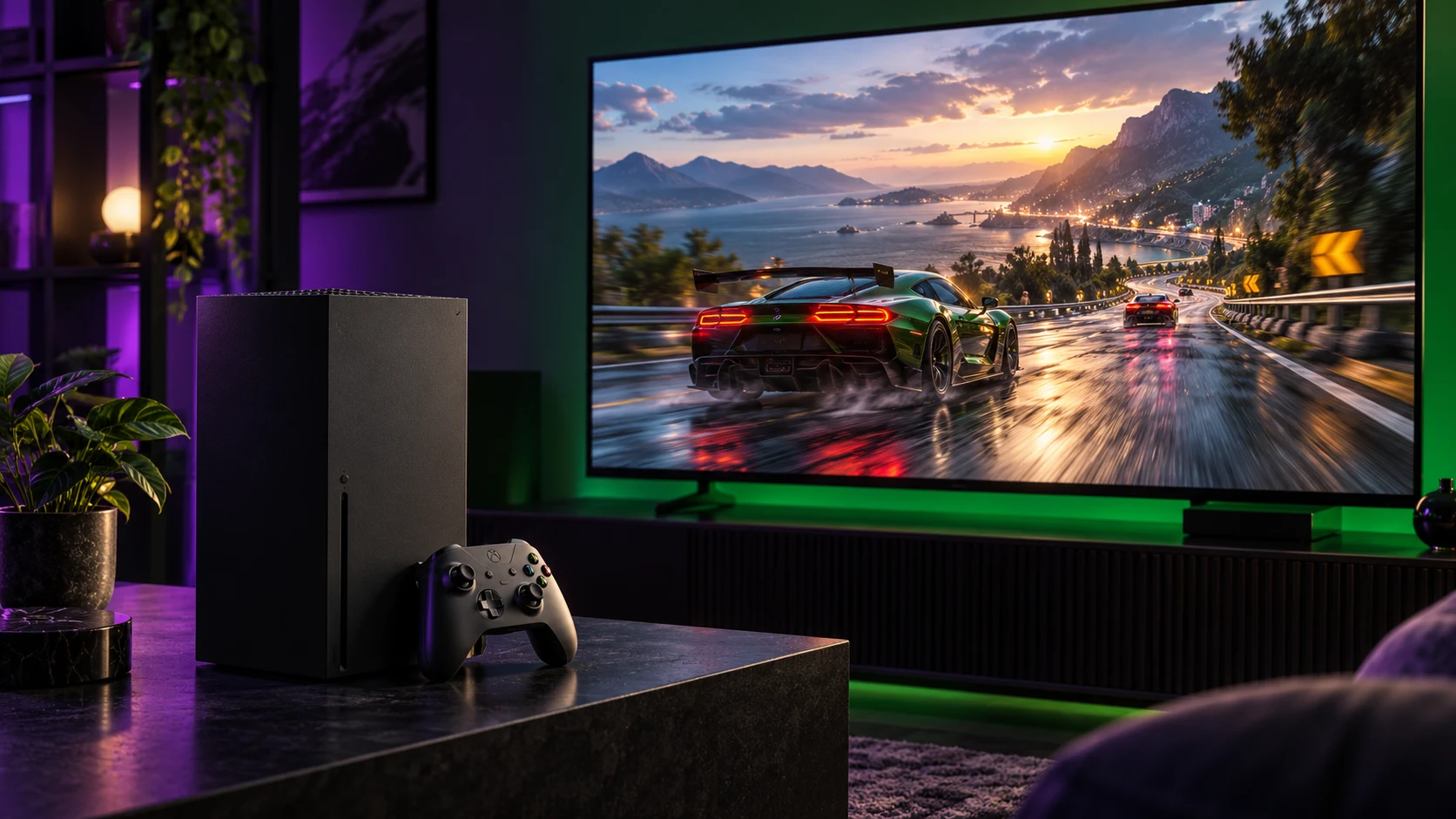
Variable Refresh Rate can make an Xbox Series X or Xbox Series S feel noticeably better in games where frame rate moves around. Instead of showing a torn image or adding extra stutter when performance changes, a compatible display can match its refresh rate to the console’s output. If you searched for how to enable VRR Xbox, the setting is quick to find, but your TV, monitor, HDMI port, and cable all need to cooperate.
The short answer is this: on your Xbox, open Settings, choose General, open TV & display options, select Video modes, then check Allow variable refresh rate. If the option is unavailable or does not stay enabled, the problem is usually on the display side rather than the console.
How to Enable VRR on Xbox Series X or Series S
Start with the console connected directly to the TV or monitor you intend to use. An AV receiver, HDMI switch, capture device, or soundbar can limit the signal path, even when the Xbox and display both support VRR.
From the Xbox dashboard, follow this path:
- Press the Xbox button and open Profile & system.
- Select Settings, then General.
- Open TV & display options.
- Choose Video modes.
- Turn on Allow variable refresh rate.
Xbox Series X and Xbox Series S support VRR through the HDMI display connection when the attached display reports compatible support. The same Video modes page also contains options such as Auto low latency mode, 4K output, HDR, and 120 Hz output. Those features can work alongside VRR, but they are separate settings. You do not need a 120 Hz screen simply to use VRR.
After enabling it, return to TV & display options and select 4K TV details. Despite the name, this page is useful for more than 4K televisions. It shows what the Xbox detects from the connected display, including supported resolutions, refresh rates, HDR formats, and gaming features. Read this page before changing several settings at once. It is the clearest way to see whether the console recognizes VRR capability.
What VRR Actually Changes in Games
A normal display refreshes at a fixed pace, commonly 60 Hz or 120 Hz. A game does not always produce new frames at that exact pace. When a frame arrives at the wrong moment, you may see screen tearing, where parts of two frames appear together, or uneven motion caused by repeated frames.
VRR gives the display room to adjust its refresh timing to the console’s frame delivery. The practical benefit is usually cleaner motion during demanding scenes and less obvious tearing when a game does not hold a perfectly fixed frame rate.
That does not mean VRR creates performance the console does not have. A game running at 45 frames per second is still running at 45 frames per second. VRR can make the presentation look more consistent, but it cannot turn a performance mode with drops into a locked 60 frames per second mode. It also cannot fix poor input response caused by a display’s image processing.
For many players, VRR matters most in games with demanding graphics modes, large open world areas, or occasional frame rate dips. In a game that stays perfectly locked at 60 or 120 frames per second, the difference may be subtle. That is not a reason to leave it off. It simply explains why the benefit varies from game to game.
Check the TV or Monitor Before Blaming the Xbox
The Xbox menu can only enable VRR when the display and active HDMI input support it. Manufacturers use several labels for this feature, including VRR, HDMI VRR, FreeSync, and AMD FreeSync Premium. The name on the box is less important than whether that specific HDMI input supports variable refresh rate at your chosen resolution and refresh rate.
Open the display’s own settings menu and look for a gaming section. On many TVs, VRR is only available after enabling a gaming picture mode or an enhanced HDMI input mode. The exact wording differs by manufacturer and model. Some displays also require you to enable the feature independently for each HDMI port.
Use the HDMI port identified in your display manual for high bandwidth gaming features. It is common for one or two ports to support 4K at 120 Hz and VRR while the remaining ports are limited to 4K at 60 Hz. A television may still show a picture through those other ports, which makes the limitation easy to miss.
A monitor can have a similar restriction. It may support adaptive sync through DisplayPort but not through HDMI, or it may support VRR over HDMI only within a particular refresh range. Xbox consoles use HDMI for video output, so the HDMI specifications matter more than the monitor’s DisplayPort headline feature.
Set Resolution and Refresh Rate Sensibly
In TV & display options, choose the resolution and refresh rate your display actually supports. Xbox Series X and Xbox Series S can be set to 60 Hz or 120 Hz when a compatible display is detected. If your screen supports 4K at 60 Hz with VRR but not 4K at 120 Hz, 4K at 60 Hz with VRR is often the better choice than forcing an unsupported mode.
Do not assume 120 Hz is always the right setting. It depends on the game, the display, and your priorities. A 120 Hz mode can be useful for games that offer 120 frames per second support, but some games reduce image quality or resolution to reach that target. VRR still has value at 60 Hz because it can smooth out small changes around a game’s intended frame rate.
If you change refresh rate and the screen goes blank, wait for the Xbox confirmation timer. The console will restore the previous setting if you do not confirm the new picture. This is safer than repeatedly restarting the console while the display is trying to renegotiate an unsupported signal.
Why the VRR Option Is Missing or Grayed Out
When Allow variable refresh rate cannot be selected, work through the signal chain in order. Begin with the HDMI cable that came with your Xbox Series X or Xbox Series S, or use another certified cable suitable for the resolution and refresh rate you want. A cable that works for 4K at 60 Hz may not reliably carry every higher bandwidth mode.
Next, connect the Xbox directly to the display. If VRR appears when a receiver, switch, or soundbar is removed, that device is the bottleneck. You can then decide whether keeping the more direct gaming connection matters more than the convenience of the extra hardware.
Also check the display input settings. A TV may need enhanced format enabled before it reports its full capabilities to Xbox. Turning on the display’s game mode can help as well, though game mode and VRR are not identical. Game mode generally reduces image processing and input delay, while VRR controls refresh timing.
If the display should support VRR but Xbox still reports otherwise, restart both devices fully. Turn off the Xbox, unplug the TV or monitor briefly, reconnect the HDMI cable, then power the display on before starting the console. HDMI capability information is exchanged when devices connect, and a fresh handshake can resolve a setting that failed to appear after changing ports or modes.
Avoid setting the Xbox connection to HDMI mode manually unless you have a specific compatibility reason. In Video fidelity and overscan, the normal Auto detect setting lets Xbox read the display’s reported capabilities. Manual overrides can be useful for older screens, but they can also prevent the console from recognizing advanced features correctly.
A Few Settings Worth Pairing With VRR
VRR is one part of the Xbox display setup, not a replacement for everything else. If your display supports it, Auto low latency mode can switch the display into its low latency gaming behavior when you start a game. HDR settings are handled separately under the Xbox calibration tools. Use those tools only if your display supports HDR and its own settings are configured correctly.
The most practical combination for a compatible modern screen is VRR enabled, Auto low latency mode enabled, and the console set to a resolution and refresh rate the display confirms in 4K TV details. Then leave the game itself to decide whether its quality or performance mode fits what you value more.
Once VRR is working, resist the urge to chase every checkbox. A stable picture, low input delay, and the display mode that fits the games you actually play will matter more than a specification list that looks impressive but introduces compromises you can see.
Follow GamingBroject on Google: add us as a preferred source


Community
0 comments