
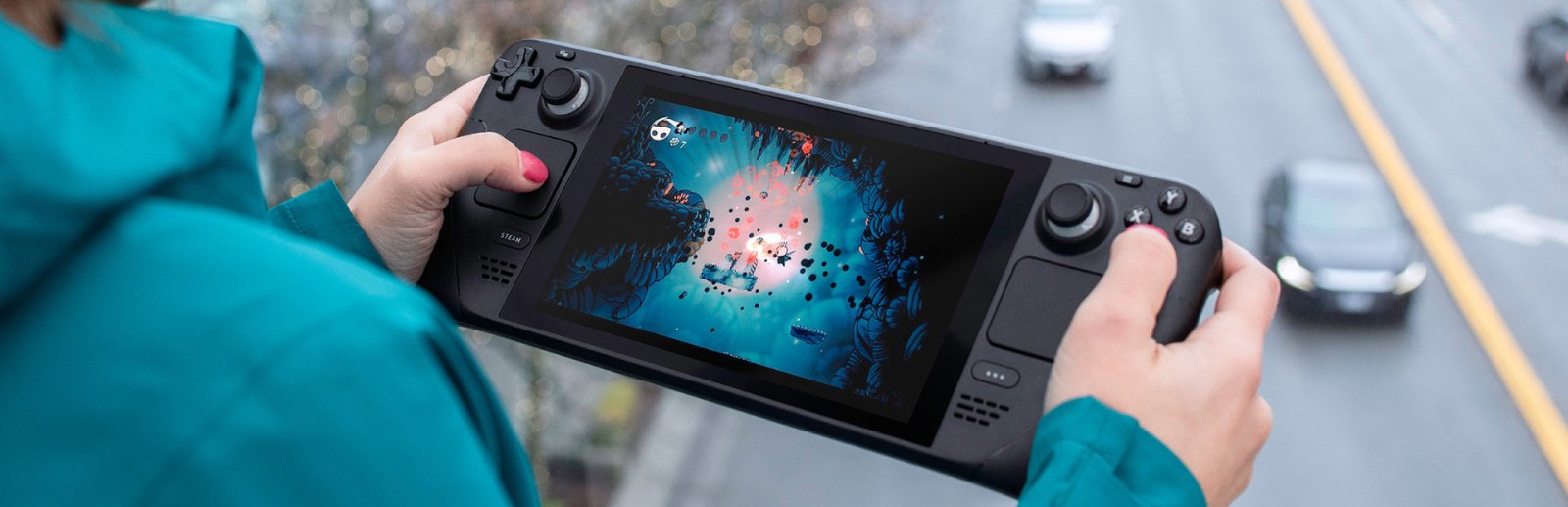
Bought a Steam game that crashes, runs poorly on your PC, or simply is not what you expected? Knowing how to refund a Steam game can save you from treating a bad purchase as a lesson learned. Steam’s refund system is generally straightforward, but the clock starts quickly and playtime matters just as much as the purchase date.
The basic rule for games and software bought through Steam is simple: submit the request within 14 days of purchase and keep recorded playtime below two hours. Meeting both conditions usually puts you in the strongest position for a refund, although Valve says requests outside those limits can still be considered.
How to Refund a Steam Game in Steam Support
Steam handles refunds through Steam Support, not through a separate store form. You can submit a request in the Steam client or in a web browser while signed in to the Steam account that made the purchase.
- Open Steam Support from the Help menu in the Steam client, or open Steam Support in your browser.
- Choose Purchases, then select the game you want to return from the list.
- Select the option that says you would like a refund.
- Choose a reason that best describes the issue, such as technical problems or accidental purchase.
- Pick where you want the money returned, then submit the request.
Steam may offer a refund to the original payment method or to your Steam Wallet. The available choice depends on the payment method and the country where the purchase was made. If returning funds to the original method is not available, Steam Wallet credit may be the alternative.
You do not need to write a long appeal for an ordinary request that meets the 14-day and two-hour rules. Still, a short, accurate note can help when the reason is a specific technical problem, such as repeated startup failures. Do not exaggerate your issue or attempt to reset playtime. Steam records the relevant account activity.
The Steam Refund Rules That Matter Most
The two core limits are easy to remember, but they are not the whole policy. Steam applies different conditions to items such as downloadable content, preorders, bundles, and games bought outside the Steam store.
Games and software
For most Steam games and software, request the refund within 14 days of purchase with less than two hours of recorded playtime. Time spent troubleshooting, trying settings, or waiting through an unexpectedly long opening sequence can still count toward that total. If you are unsure whether a game works on your setup, it is smart to test the basics early instead of leaving it untouched until the end of the two-week window.
This is especially relevant for PC releases with demanding requirements. Check whether the game launches, whether your controller works, whether online features function if they are necessary for your plans, and whether performance is acceptable on your hardware. A refund is not a replacement for checking the store page before purchase, but it gives players room to make a reasonable first assessment.
Downloadable content
Steam says downloadable content can generally be refunded within 14 days of purchase if the related game has been played for less than two hours since the downloadable content purchase. There is an important exception: the content cannot have been consumed, modified, or transferred.
That distinction matters for content such as in-game currency, one-time items, or packs that immediately alter your account. Once content has been used in a way that cannot be reversed, a refund may not be available. Treat any purchase that grants a consumable item as final unless Steam clearly shows otherwise before checkout.
Preorders
A Steam preorder can be refunded at any point before release. After release, the standard 14-day and two-hour conditions apply. This gives players a practical option when previews change their mind, a release is delayed, or the final game turns out to be different from what they wanted.
The sensible move is to keep an eye on the date a preorder becomes playable. Waiting until weeks after release removes the flexibility that applies before launch.
Bundles and gifts
Bundles can be refundable if the combined usage time for every item in the bundle stays under two hours and none of the items have been transferred. Steam also considers whether the bundle contains an item that cannot be refunded.
Gift purchases have a separate wrinkle. An unredeemed gift can be refunded by the original buyer. Once the recipient has redeemed it, the recipient must initiate the refund request, and the original purchaser can receive the funds if the request is approved. This is worth remembering before sending a gift to someone who is unsure about a game.
What Is Not Usually Eligible
Not every transaction in your Steam account works like a standard game purchase. Steam’s policy excludes or limits several categories, and the details can depend on the specific product and developer settings.
Our Take
I think it's really important for everyone with a PC or a console to know how to get a refund on Steam. Plenty of people buy a game, hit a crash or terrible performance, and just shrug it off as a lost cause.
Personally, I believe not even 40% of players know how to request a refund, let alone what they're actually entitled to. That's a problem, because the basics are simple. Steam says to ask within 14 days of purchase, with less than two hours of recorded playtime. Plenty of players don't realize the clock is ticking from the moment they buy.
That's exactly why we put this guide together, and we wrote it especially for you. Now you know where to go and what your rights are, so a bad purchase doesn't have to cost you money.
Panos, GamingBroject editor
In-game purchases are generally refundable within 48 hours only when the item has not been consumed, modified, or transferred, and when the game developer has enabled refunds for those purchases. Steam Wallet funds are not refundable. Video content is not refundable once it has been viewed. Purchases made outside Steam, including retail activation codes, cannot be refunded through Steam because Valve did not process the payment.
Subscription purchases may also follow their own conditions. If you are looking at a recurring charge or a service tied to another publisher account, read the product terms shown during purchase and use Steam Support for the transaction history. Do not assume canceling a subscription automatically means a refund for time already billed.
If You Are Over Two Hours or 14 Days
The published limits are the best guide, but Steam explicitly says it will consider refund requests that fall outside them. That is not a promise of approval. It is a reason to ask when there is a legitimate issue, particularly when a problem became clear only after more time with the game.
Keep the request focused on facts. Explain that the game has a persistent issue, identify the relevant feature if necessary, and state what you already tried. For example, a game that will not launch after a graphics driver update is a clearer explanation than a vague complaint that it does not work.
There is a tradeoff here. Steam’s refund program is designed to give buyers confidence, but it is not meant to turn completed games into free rentals. A request made after extensive playtime is less likely to fit the purpose of the policy, even if you later decide the game was not for you.
How Long a Steam Refund Can Take
Steam says approved refunds are issued within one week of approval. The time before approval can vary, and the time for money to appear in your bank or payment account can depend on the payment provider. Steam Wallet refunds may be visible sooner than a return to some external payment methods, but players should not assume an immediate result.
You can check the status through Steam Support and your purchase history. Until the request is resolved, avoid buying the same game again unless you have a clear reason to do so. A price change, a different edition, or a new sale can complicate what should have been a simple support request.
A Better Way to Use Steam’s Refund Window
The healthiest way to think about Steam refunds is as a short evaluation period, not an open-ended safety net. Install the game soon after buying it, test the parts that matter to you, and make the decision before either limit becomes a problem.
For a single-player game, that might mean checking performance, controls, accessibility options, and whether the opening hours match the store description. For a multiplayer game, confirm that matchmaking, servers, and your intended region work at the times you actually play. A few deliberate checks early can tell you far more than leaving a new purchase in your library for two weeks.
If the game is not a fit, submit the request while you are clearly within Steam’s stated rules. If it is a fit, you can get back to the part that matters: playing it instead of worrying about whether you missed the refund window.
Follow GamingBroject on Google: add us as a preferred source



Community
0 comments