
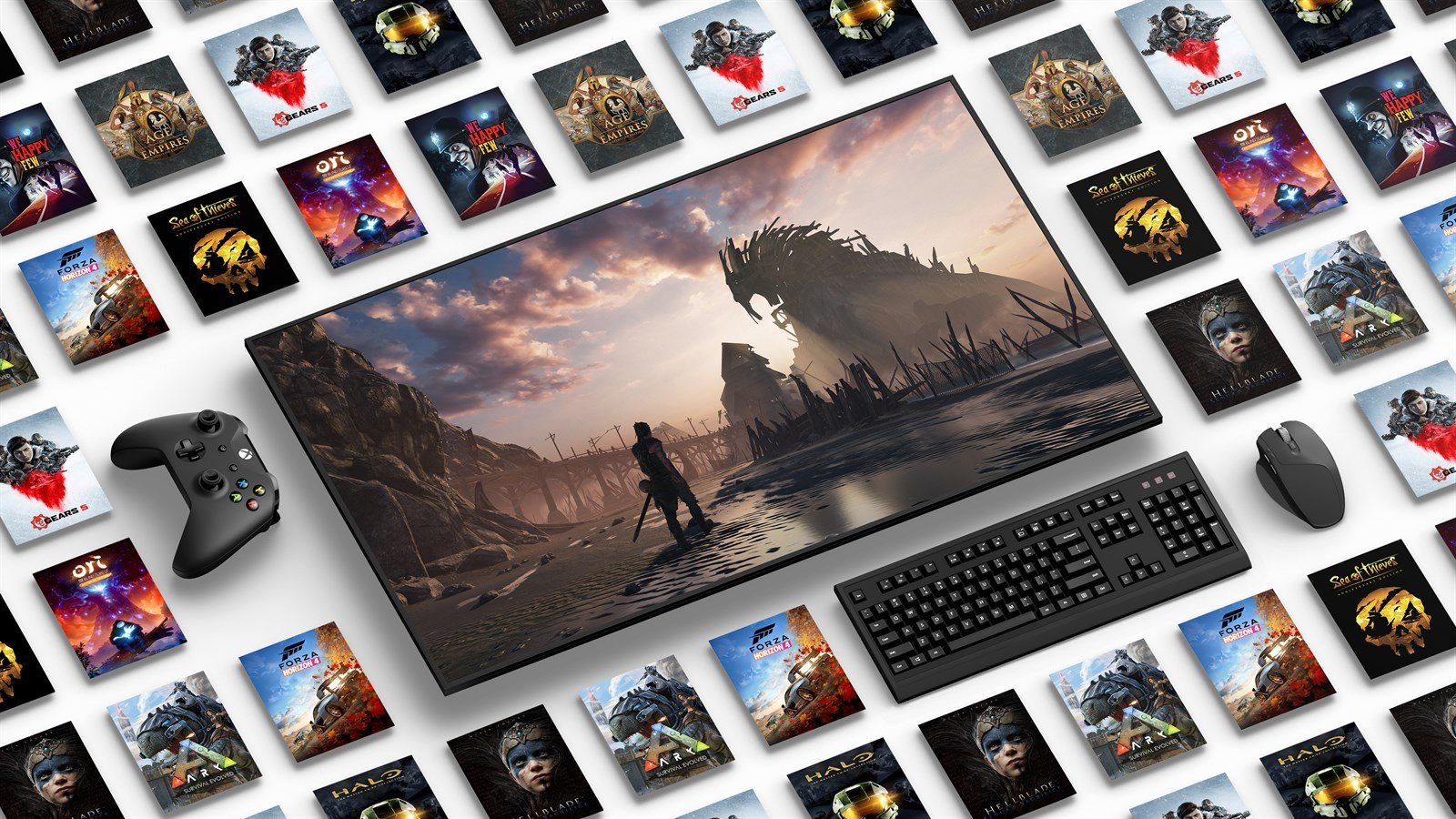
Xbox Cloud Gaming lets Game Pass Essential, Premium and Ultimate members stream supported games from Microsoft servers instead of installing them locally. That can mean starting a game on a phone, tablet, browser, smart TV, PC or Xbox console within minutes. It is useful, but it is not a replacement for a console or gaming PC in every situation, and from November it comes with a monthly time budget. Your connection, screen, controller, region and the game itself all affect the result.
For players choosing between installing a game and streaming it, the practical answer is simple. Install games you expect to play for hours, especially competitive games or large single player releases. Use cloud gaming to try something quickly, continue a save away from home, or play on hardware that could not run the game natively.
What changes in November: monthly cloud hours
On September 3, 2026, Xbox announced that Game Pass plans will include a set number of cloud gaming hours each month, starting in November. Until then, eligible members can still stream without a monthly limit. Xbox expects the change to affect about 4% of Game Pass subscribers, the players who stream the most. We covered the announcement when it landed: Xbox Cloud Gaming adds monthly hour limits from November.
| Plan | US price a month | Cloud hours a month from November |
|---|---|---|
| Game Pass Essential | 9.99 US dollars | 5 hours |
| Game Pass Premium | 14.99 US dollars | 10 hours |
| Game Pass Ultimate | 22.99 US dollars | 15 hours |
Prices are the US prices on the official Xbox Game Pass page on October 13, 2026, and they can change. PC Game Pass does not include cloud gaming. If you have more than one eligible Game Pass subscription, the hours do not stack: the plan with the most hours applies. Our Game Pass plans guide covers what else each plan includes.
Once you use your included hours, Xbox says you will be able to buy more cloud playtime in the Xbox Store. Available hours, purchase options and features may vary by market. Xbox says it will share the prices before the change, and in November the list of eligible games, market availability and how to check your remaining time. The details are in the official Xbox Wire post.
What the numbers mean in practice: 15 hours is about 30 minutes a day across a month, 10 hours is about 20 minutes and 5 hours is about 10 minutes. That is plenty for trying games and short sessions away from your console, but not for streaming a long campaign every evening.
Cloud gaming without Game Pass
Also from November, players without Game Pass will be able to buy cloud playtime hours in the Xbox Store and stream eligible games they own on supported devices. Free to play games such as Fortnite can already be streamed with a free Microsoft account at xbox.com/play. Xbox also points out that cloud play lets Xbox One owners run eligible games built for Xbox Series X|S without upgrading their console right away.
What Xbox Game Pass Cloud Gaming actually does
Cloud gaming runs the game on remote Xbox hardware. Your device receives a video stream and sends button presses back to the server. Unlike remote play, the game is not running on your own Xbox console at home. Microsoft is handling the processing, storage and game session on its side.
That distinction matters. A weak laptop can stream a demanding game because it is decoding video rather than rendering detailed graphics locally. It also means the experience depends on network quality far more than a downloaded game does. If your connection has high latency, fluctuating speeds or packet loss, even a visually clear stream can feel delayed.
Cloud access is tied to supported Game Pass plans and supported regions. Microsoft changes plan benefits, device support and game availability over time, so check the Xbox Cloud Gaming page before subscribing for one specific feature. A game being in Game Pass does not automatically mean it can be streamed in every market or on every device.
Which devices can stream Xbox games?
Xbox lists cloud gaming on Xbox Series X|S and Xbox One consoles, Windows PCs through the Xbox app, phones, tablets and PCs through supported browsers at xbox.com/play, handheld PCs, select LG, Samsung and VIDAA smart TVs, Amazon Fire TV and VR headsets. Availability still varies by country and app.
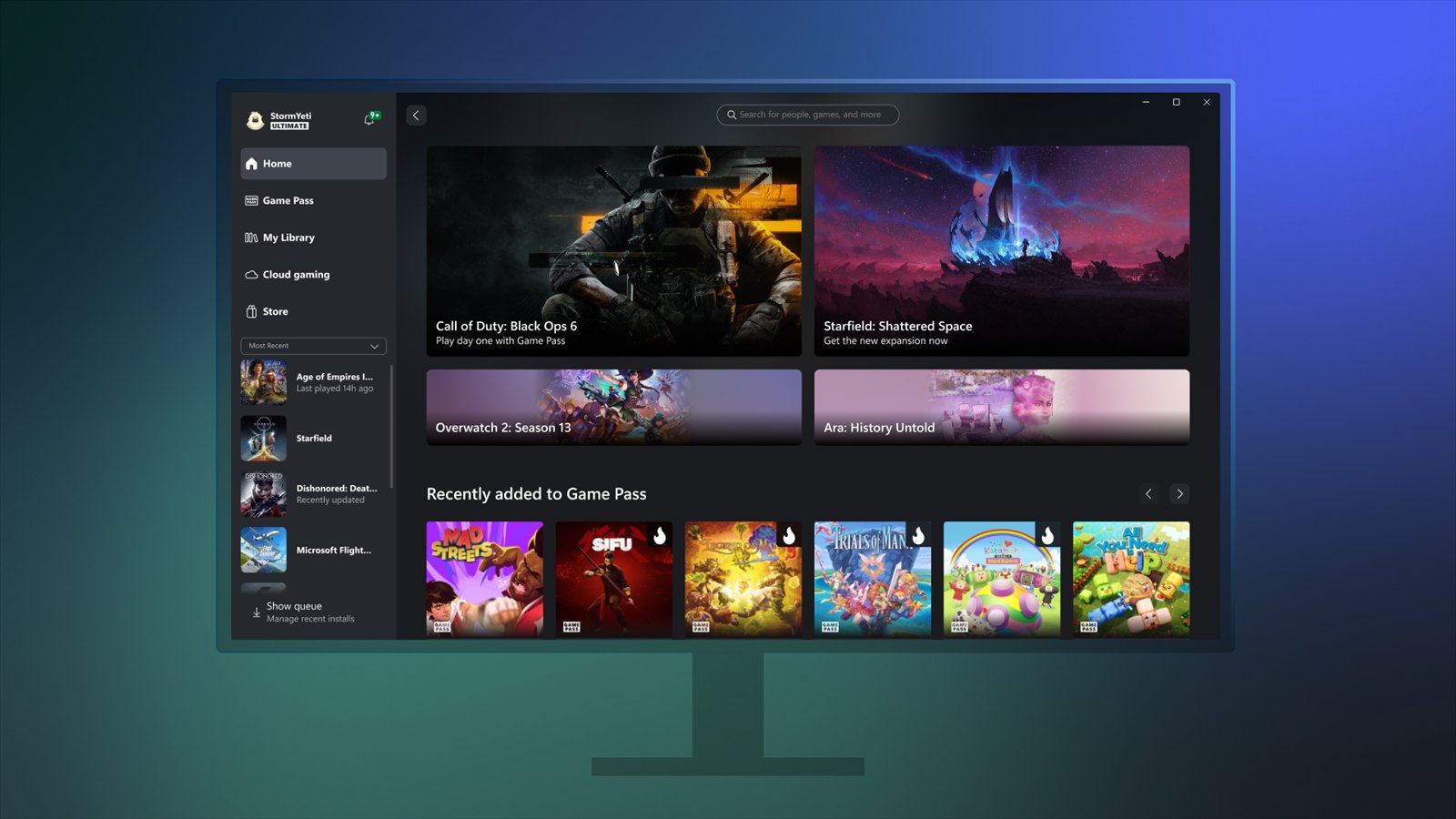
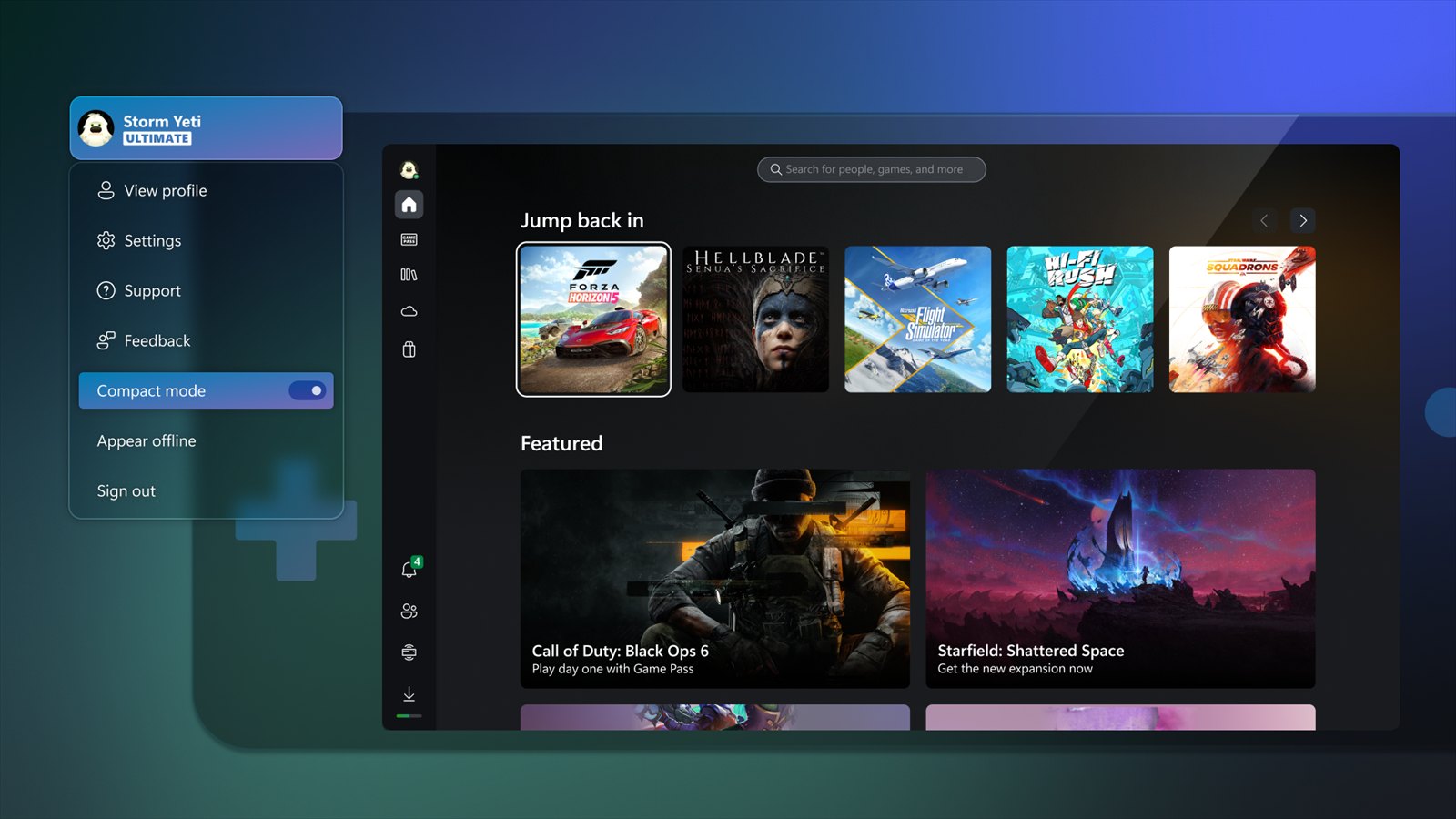
The easiest setup depends on what you already own. On a Windows PC, the Xbox app is the most direct route, with Cloud gaming in its own place in the sidebar. On a Mac, Chromebook, Linux PC or a device without an Xbox app, a supported browser is the practical option. A smart TV app can be appealing because it cuts out the console entirely, but its controller support and network connection matter just as much as the television screen.
An Xbox Wireless Controller is the safest choice because it is designed for the Xbox button layout used by most games. Xbox also lists the Sony DualShock 4 among supported controllers, and selected titles offer touch controls on phones and tablets. Touch input is fine for menu driven games, card games, turn based strategy and slower adventures. For shooters, racing games, action games and anything requiring precise camera control, a physical controller is usually the better fit.
Your screen is not the bottleneck
A large television does not make cloud gaming more demanding in the way native gaming can be. The stream is still delivered to the device, while Microsoft handles the game rendering elsewhere. What does change is how noticeable image compression can become. Fast camera movement, dark scenes, fine grass and dense particle effects can show artifacts more clearly on a large screen.
That does not make TV streaming a poor choice. It simply means that a stable wired network often matters more than buying a more powerful display device.
The connection question: speed helps, stability matters more
Xbox recommends 20 Mbps on consoles, PCs and tablets, 10 Mbps on phones, and a 5 GHz WiFi or mobile data connection. Treat those numbers as a starting point rather than a guarantee. Two connections with similar download speeds can produce very different results. Latency, WiFi congestion, router placement, local network traffic and distance from Microsoft servers all affect responsiveness.
A reliable connection with modest speed can feel better than a faster service that drops packets during busy evening hours. This is why cloud gaming often works well for a puzzle game or a role playing game, then feels frustrating in a ranked shooter. The issue is not only how sharp the picture looks. It is whether your input reaches the game quickly and consistently.
If possible, use Ethernet for an Xbox console, PC, smart TV or streaming device. If Ethernet is not realistic, use a strong 5 GHz WiFi connection close to the router and avoid downloading large files while playing. Mobile data can work, but usage limits and changing signal conditions make it less predictable than home broadband.
Installation versus streaming: choose based on the game
Cloud gaming’s biggest advantage is convenience. There is no long download before trying a game, no need to clear storage space and no requirement for powerful local hardware. It is especially useful when you want to sample a Game Pass title before committing to a large installation, and with a monthly hour budget, that is where those hours go furthest.
Native installation still wins when performance is the priority. A downloaded Xbox or PC game avoids video compression and removes the round trip between your input and a remote server. That usually means cleaner image quality, lower input delay and fewer interruptions caused by your home network.
The difference is most obvious in games that demand timing. Fighting games, competitive shooters, rhythm games and racing simulators are generally better installed when that option exists. Slower games can be excellent cloud candidates, particularly if you want to play on a laptop, tablet or television away from your main setup.
There is also a storage angle. Modern games can consume substantial console or PC space, and cloud play lets you keep a large title off your drive until you know you want it. For players with smaller SSDs, that can be more valuable than the ability to play on a phone.
Saves, ownership and game availability
For supported games, Xbox cloud gaming uses your Xbox account and can work with cloud saves. In practical terms, that can let you start a game on one device and continue on another. The exact behavior depends on the game, platform, account status and whether the title supports Xbox cloud saves.
Do not confuse Game Pass access with permanent ownership. If a game leaves the subscription catalog, your streaming access through Game Pass can end unless another entitlement applies. You can also stream select games you own or buy outside Game Pass, including most Xbox Play Anywhere games, but that list is separate from the Game Pass catalog and can change. Check the game page in the Xbox ecosystem before assuming a purchased title is streamable.
This is one of the main tradeoffs. Cloud gaming makes a rotating catalog feel instantly available, but it also makes catalog changes more visible. A downloaded game can remain installed, yet that does not preserve a Game Pass license after a title leaves the service.
How to get a better cloud session
Start by signing into the same Microsoft account that has your qualifying Game Pass membership. Choose the device route that fits your hardware, pair a controller when possible, then select a cloud enabled title from the Xbox library. If the session feels poor, do not immediately blame the service or the game. Test another title, restart the router if needed, and compare WiFi with a wired connection.
Close downloads, video streams and large sync jobs on the same network. On a laptop or handheld PC, make sure power saving settings are not limiting wireless performance. On mobile, test in a stable location before deciding whether touch controls or cellular play are workable for you. Once the monthly limits start, keep an eye on your remaining hours, which Xbox says it will explain in November.
Cloud gaming is at its best when it removes friction. Use it to try a game before a massive install, keep a campaign going while traveling, or turn a capable screen into an Xbox access point. With 5 to 15 included hours a month from November, it works best as that kind of extra, not as your main way to play. When precision, image quality or long sessions matter most, installing the game is still the smarter play.
Based on the official Xbox Wire announcement of September 3, 2026 and the Xbox Cloud Gaming and Game Pass pages on xbox.com, checked on October 13, 2026.
Follow GamingBroject on Google: add us as a preferred source

Community
0 comments